
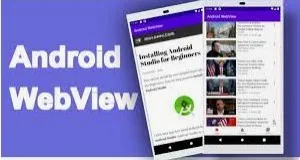
Creating a blog app with a WebView in Android Studio to display a mobile view of a website is a relatively straightforward process. You can use the WebView component to load and display web content. Here's a step-by-step guide to help you get started:
1. Set up your development environment:
Make sure you have Android Studio installed and configured on your computer.
2. Create a new Android project:
Start a new Android Studio project and select the "Empty Activity" template. Give your project a name and set other project details.
3. Design the user interface:
In your layout XML file (usually `activity_main.xml`), add a WebView to display the website. Here's an example:
Code:-
<?xml version="1.0" encoding="utf-8"?>
<RelativeLayout xmlns:android="http://schemas.android.com/apk/res/android"
xmlns:app="http://schemas.android.com/apk/res-auto"
xmlns:tools="http://schemas.android.com/tools"
android:layout_width="match_parent"
android:layout_height="match_parent"
tools:context=".MainActivity">
<WebView
android:id="@+id/webview"
android:layout_width="match_parent"
android:layout_height="match_parent" />
</RelativeLayout>
4. Load a website in WebView:
In your `MainActivity.java`, you can load a website using WebView. You should also configure WebView settings to enable JavaScript, set a WebViewClient to handle page navigation, and handle back button navigation. Here's a basic example:
import android.os.Bundle;
import android.webkit.WebSettings;
import android.webkit.WebView;
import android.webkit.WebViewClient;
import androidx.appcompat.app.AppCompatActivity;
public class MainActivity extends AppCompatActivity {
private WebView webView;
@Override
protected void onCreate(Bundle savedInstanceState) {
super.onCreate(savedInstanceState);
setContentView(R.layout.activity_main);
webView = findViewById(R.id.webview);
WebSettings webSettings = webView.getSettings();
webSettings.setJavaScriptEnabled(true); // Enable JavaScript
webView.setWebViewClient(new WebViewClient());
webView.loadUrl("https://yourblogwebsite.com"); // Replace with your blog's URL
}
@Override
public void onBackPressed() {
// Handle back button navigation in the WebView
if (webView.canGoBack()) {
webView.goBack();
} else {
super.onBackPressed();
}
}
}
5. Permissions (if required):
Depending on the website you're loading, you may need to request internet permissions in your AndroidManifest.xml:
<uses-permission android:name="android.permission.INTERNET" />
6. Testing:
Run your app on an emulator or a physical Android device to test how it loads and displays your blog website.
Remember to replace `"https://yourblogwebsite.com"` with the URL of the blog you want to display. This code provides a basic WebView implementation for viewing a mobile version of a website within your Android app. Depending on your requirements, you can customize the WebView's behavior and appearance further.